Fictional Adventure
Fictional Adventure is a Twine story format that allows publication to Archive Of Our Own, or any other site that allows HTML and CSS but not JavaScript.
How To Use
Add the story format to Twine
Fictional Adventure is a Twine "story format", basically a plugin that controls how the story will appear. You'll only need to do this once.
- Open Twine's editor, either installed on your computer or directly in your web browser.
-
From the menubar, click "Twine" and then "Story Formats".

-
In the Story Formats window, click "+ Add".
- In the dialogue box that appears, paste the following URL:
https://fictional.tools/adventure/dist/format.js
-
Click the green "+ Add" button. This will add Fictional Adventure to Twine.
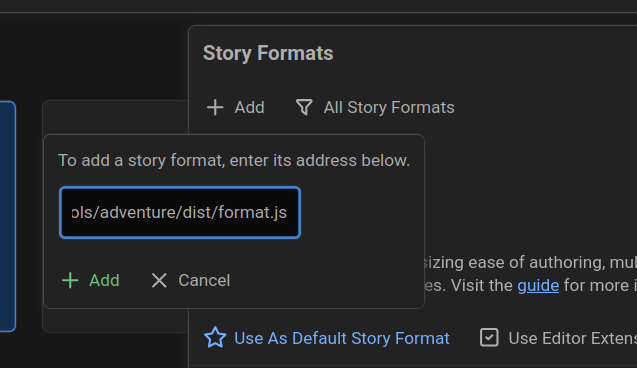
https://fictional.tools/adventure/1.2.0/dist/format.js
Create a new story using Fictional Adventure
- Click "+ New" from the menubar to create a new story.
-
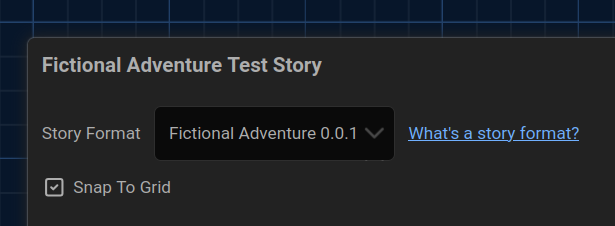
Click "Story" from the menubar, and then "Details".

-
A dialogue box will open. From the "Story Format" dropdown, select "Fictional Adventure".
-
Create the story. You can check out Twine's reference guide for full instructions, but in short:
- Double-click on a passage to open it in a window
- Type in contents of each passage as normal. You can use Markdown for formatting like italics, bolds, etc.
- Create links to other passages by surrounding text in square brackets. For example,
[[Part Two]]will link to a passage named "Part Two" and create it if it doesn't already exist. -
To make big, finger-friendly buttons, put your links on their own lines starting with an asterisk:
* [[Go to Part Two]] * [[Or to Part Three]] -
You can test out your story by clicking "Build" from the menubar and then clicking "Play". This will format your story with Fictional Adventure. Check out the "Preview" section to see your story in action.

-
Once you're ready to publish to AO3 or elsewhere, play your story like above.
- Create a work skin on AO3 and paste in the contents of Fictional Adventure's "CSS" box.
- Create your fic on AO3 and paste in the contents of the "HTML" box as your chapter contents.
- Select your created work skin as the skin for your fic, then save.
- Your Twine story is now published to AO3!
If you publish a work using Fictional Adventure, consider adding a link in your end notes:
Created using <a href="https://twinery.org/">Twine</a> and <a href="https://fictional.tools/adventure?utm-source=user-share">Fictional Adventure</a>.
Advanced Features
Customizing Your Work Skin
If you want to customize how your fic appears, you can add custom CSS directly in Twine from the Story > Stylesheet menu. Just enter (or paste in) CSS and it'll be automatically get appended to Fictional Adventure's CSS output.
For example, you can alter the color of the link buttons like this:
li a {
  color: white;
  background-color: #593196;
}
Using Story Flags
If you want to add more complex logic to your story, you can use story flags. Story flags allow for simple "if this then that" sections to be added to your code to track things the player has done, such as picking up items. (In programming terms, story flags are boolean variables.)
Story flags can be either "set" or "unset". They are always "unset" to start with. They can be set by putting the following in a passage of your story:
{{#set has-key}}Pick up the key.{{/set}}
This will create a button that will "set" the flag when clicked. In other passages, you can check whether the flag has been set:
{{#if has-key}}
    You have the key!
{{else}}
    You don't have the key.
{{/if}}
Story flags can also be unset:
{{#unset has-key}}Drop the key.{{/unset}}
Or can be toggled between states:
{{#set has-key}}
    Pick up the key.
{{else}}
    Drop the key.
{{/set}}
This will create a button that shows "Pick up the key" to start with, then when clicked will toggle to "Drop the key". (It'll toggle back if clicked again.)
To make the buttons appear as links instead, add btn=0:
{{#set has-key btn=0}}Pick up the key{{/set}}
Flag Logic
You can write blocks that check whether multiple flags are set.
To check whether all or none of the listed flags are set, use {{#all}} and {{#none}}:
{{#all first-key second-key third-key}}
    This will appear if first-key, second-key, and third-key are all set.
{{else}}
    This optional "else" section will appear if not all of these flags are set.
{{/all}}

{{#none first-key second-key third-key}}
    This will appear if first-key, second-key, and third-key are all unset.
{{else}}
    This optional "else" section will appear if any of these flags are set.
{{/none}}
({{#if}} and {{#unless}} are aliases of {{#all}} and {{#none}} and work identically, so use whichever you prefer.)
To check whether any listed flag is set, use {{#any}}:
{{#any first-key second-key third-key}}
    This will appear any of the flags first-key, second-key, or third-key are set.
{{else}}
    This optional "else" section will appear if none of these flags are set.
{{/any}}
These blocks can be nested inside each other:
{{#any first-key second-key third-key}}
    You have these keys:

    {{#if first-key}}You have the first key{{/if}}
    {{#if second-key}}You have the second key{{/if}}
    {{#if third-key}}You have the third key{{/if}}
{{else}}
    You don't have any keys.
{{/any}}
Flag Lists
Sometimes it can be helpful to have a shorthand to refer to multiple flags. You can create a flag list like this:
{{list keys first-key second-key third-key}}
This creates a flag list named keys containing the flags first-key, second-key, and third-key. (Note that there's no # symbol in front of list like there is in the other commands.)
Once defined, this flag list will be available in every passage. You can use it anywhere that multiple story flags can be used:
{{#all keys}}
    You have all the keys!
{{/all}}
#set or #unset statements, since those only accept one flag at a time.Sequences
Sometimes it's useful to work with a list of story flags in order. For example, keeping track of the current day. The {{#sequence}} helper makes it easier to work with sequences of flags.
{{list days day-0 day-1 day-2 day-3}}

{{#sequence days}}
    It's day {{@count}}.

    {{#set @next}}Go to day {{@nextCount}}.{{/set}}
{{else}}
    It's the final day, day {{@count}}.
{{/sequence}}
The {{#sequence}} helper takes a list of flags (or a flag list) and creates a series of nested if/else blocks for each flag in the list. Inside the helper, you can use @next to refer to the next flag in the list, and @current to refer to the current flag. @count will show the current count of flags that have been set, and @nextCount will show the next flag's count.
The {{else}} block will be shown after the last flag in the sequence has been set. If the block isn't present, then nothing will be shown after the last flag.
Note that the sequence will always show the count of the currently-set flag that appears latest in the list. For example, if day-2 is set, then "It's day 2" will appear even if day-0 and day-1 are not set. This means that {{#sequence}} can't be used as a general purpose count of flags, but only for flags that are always set in a particular order.
The {{sequenceCount}} helper will return the count of the latest set flag in the given sequence:
It's day {{sequenceCount days}}.
This is the equivalent of:
It's day {{#sequence days}}{{@count}}{{else}}{{@count}}{{/sequence}}.
The {{#eq}} helper can be used to only show content at certain points in the sequence:
{{#sequence days}}
    {{@count}} {{#eq @count 1}}day has{{else}}days have{{/eq}} passed. {{#eq @count 2}}Tomorrow is the last day.{{/eq}}
{{/sequence}}
{{#eq}} will render its contents if all the parameters it is given are equal, and will render its {{else}} block otherwise.
Partials
A "partial" is a passage that can be included from inside of other passages. This can be help avoid copy/pasting a section multiple times.
To make a partial, just create a story passage like normal and give it a name starting with Partial:. The name can't include spaces.
For this example, we'll create a new passage named "Partial: key-status".
{{#all keys}}
    You have all the keys!
{{else}}
    You don't have all the keys, better keep looking.
{{/all}}
Elsewhere in the story, the partial can be included like this:
You look in your pocket. {{> key-status}}
Expert usage: Handlebars
Internally, Fictional Adventure's story flags feature uses the Handlebars template engine. You can optionally use advanced Handlebars features like whitespace control.
You can also register helpers and partials in JavaScript by using your Twine story's JavaScript section, under the Story menu. The helper and partial functions are aliases of Handlebars' registerHelper and registerPartial:
helper('plural', (list, options) =>
  list.filter(i => !!i).length === 1
    ? null
    : options.fn(this));
Full Example
Passage "Start":
There is a locked door here. You {{#unless has-key}}don't {{/unless}}have the key.

There is a box here.

{{#if has-key}}
    * [[Unlock the door|Unlock]]
{{/if}}
    * [[Examine the box]]
Passage "Examine the box":
The box is {{#unless box-open}}closed.{{else}}open.{{#unless has-key}} There is a key inside.{{/unless}}{{/if}}.

{{#set box-open}}Open the box{{else}}Close the box{{/set}}

{{#if box-open}}
    {{#set has-key}}Pick up the key{{/set}}
{{/if}}

{{#if has-key}}You got the key!{{/else}}

* [[Continue|Start]]
Passage "Unlock":
You unlock the door. You win!

* [[Play Again?|Start]]